Pylance vs. Ruff — the pressing questions answered
These questions came up while working through VS Code console logs — so they belong in the blog, not just in a chat:
Does python.languageServer go into User Settings or Workspace Settings?
What is more modern: Pylance or Ruff? Do I still need Pylance if Ruff is there?
How do I install Ruff — workspace-wide or user-wide?
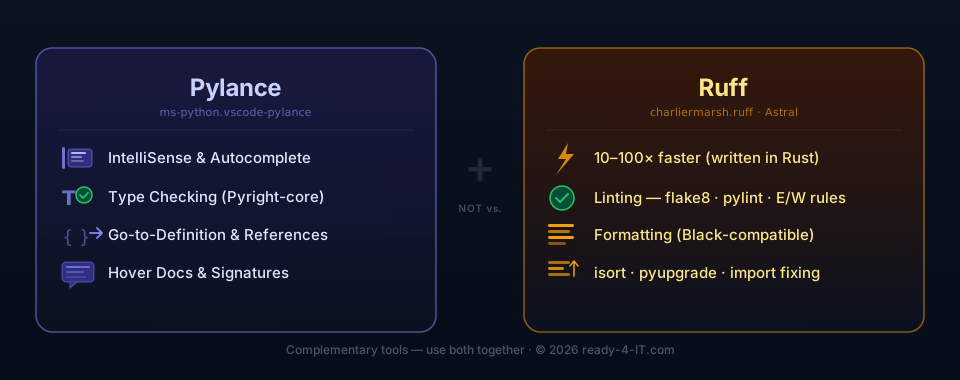
Short answer: Pylance and Ruff are not competitors. They solve completely different problems and complement each other perfectly. Combining both correctly gives you the strongest Python setup in VS Code.
Black-compatible means Ruff formats Python code by the exact same rules as the well-known tool Black — consistent quotes, fixed line length (88 chars), no style debates. It's a drop-in replacement: if you used Black before, you can switch to Ruff without changing a single line of code.
TL;DR
Pylance ≠ Ruff. Both together = the strongest setup.
User Settings (%APPDATA%\Code\User\settings.json):
Prerequisite: The VS Code extension charliermarsh.ruff must be installed. Only then will editor.defaultFormatter = charliermarsh.ruff actually take effect.
Recommendation: Put this block into the VS Code user settings, meaning %APPDATA%\Code\User\settings.json.
Workspace Settings (.vscode/settings.json in the project):
The most common misconception: Ruff does not replace Pylance. The two tools solve fundamentally different problems.
Feature
Pylance
Ruff
IntelliSense / Autocomplete
✅
❌
Type Checking (via Pyright)
✅
❌
Go-to-Definition
✅
❌
Hover Docs / Signatures
✅
❌
Linting (flake8, pylint, …)
weak
✅
Formatting (Black-compatible)
❌
✅
Import Sorting (isort)
❌
✅
Speed
normal
10–100× faster
Pylance is the Language Server — the engine behind IntelliSense, autocomplete, type checking and refactoring. Without Pylance (or an equivalent Pyright-based server), Python files are essentially "blind text" for VS Code.
Ruff is the linting and formatting tool — written in Rust, extremely fast, and designed as a drop-in replacement for flake8, pylint, isort, pyupgrade and Black. Everything in one single binary.
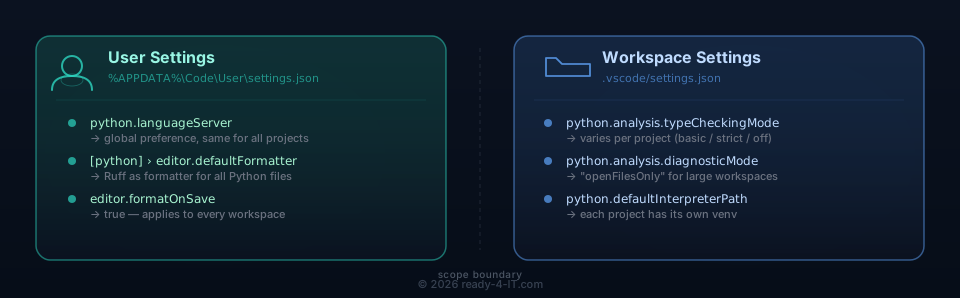
Where do settings belong?
Rule of thumb: Tool preferences (which tool do I use?) → User Settings. Project behavior (how strict?) → Workspace Settings.
In my setup, I deliberately use this relief globally in User Settings. For teams or repositories with strongly differing standards, workspace scoping can still be the better compromise.
Columns
python.languageServer
User (global)
Global preference — same for all projects
python.analysis.typeCheckingMode
Workspace
Strictness varies per project (strict / basic / off)
python.analysis.extraPaths
Workspace
Project-specific import paths
python.defaultInterpreterPath
Workspace
Each project uses its own venv
python.analysis.diagnosticMode
Workspace
Heavy workspaces need "openFilesOnly"
[python] › editor.defaultFormatter
User (global)
Ruff as default formatter for all Python files
In the settings files concretely
User Settings (%APPDATA%\Code\User\settings.json):
Recommendation: both — global CLI + local binary in the venv.
Global (for all projects, no venv conflict):
# With pipx — recommended, because isolated:
pipx install ruff

# Or classically global:
pip install ruff
Project-local (in the project's venv):
# In the activated venv:
pip install ruff
Or as a dev dependency in pyproject.toml:
[project.optional-dependencies]
dev = ["ruff>=0.4.0"]
VS Code Extension (charliermarsh.ruff)
Prerequisite: the VS Code extension charliermarsh.ruff must be installed. The assignment editor.defaultFormatter = charliermarsh.ruff alone is not enough if the extension is missing.
Recommended entry for the VS Code user settings (%APPDATA%\Code\User\settings.json):
In my setup, the native Ruff server is also enabled:
Short version: Don't disable Pylance — configure it correctly. Toggling Pylance "on demand" creates unnecessary overhead with no real benefit.
Pylance is the engine behind IntelliSense, hover docs, go-to-definition and refactoring — the features that turn VS Code into a real IDE. Properly configured, it adds negligible overhead.
In my current setup, this is intentionally configured user-wide. Teams with differing conventions may prefer a tighter scope and keep more project-specific rules in .vscode/settings.json.
diagnosticMode: openFilesOnly is the key switch for Python projects with many files or external dependencies: Pylance only analyses currently open tabs instead of scanning the entire project in the background. This keeps the editor fast — even in larger projects with Vagrant scripts, PHP companion files or shared dependencies.
When to disable Pylance per workspace?
Only if a workspace has no dedicated venv — e.g. pure helper scripts without type dependencies. In that case a workspace-local override is enough:
{ "python.languageServer": "None" }
This disables Pylance only for that workspace, without touching the global User Setting.
The division of labour stays clear
Task
Tool
Where to configure
IntelliSense, type checking, refactoring
Pylance
User Settings (always on)
Linting, formatting, import sorting
Ruff
User Settings (always on)
Strictness of type checking
typeCheckingMode
Workspace Settings
Which venv to use
defaultInterpreterPath
Workspace Settings
flake8, pylint, mypy, isort, Black — no longer needed. Ruff replaces them all.
If my IT guides or the Snapmaker Wiki saved your project (or your hardware), I'd appreciate a coffee! ☕ Your support doesn't just cover hosting and testing costs—it also fuels the development of my apps and tools. Every donation helps me dedicate more time to coding solutions that make our tech-life easier. Thank you for being part of this!